Collidera Quick Start Guide
Welcome to Collidera. This guide walks you through setting up your hamster activity tracker and recording your first wheel spins.
What is in the package?
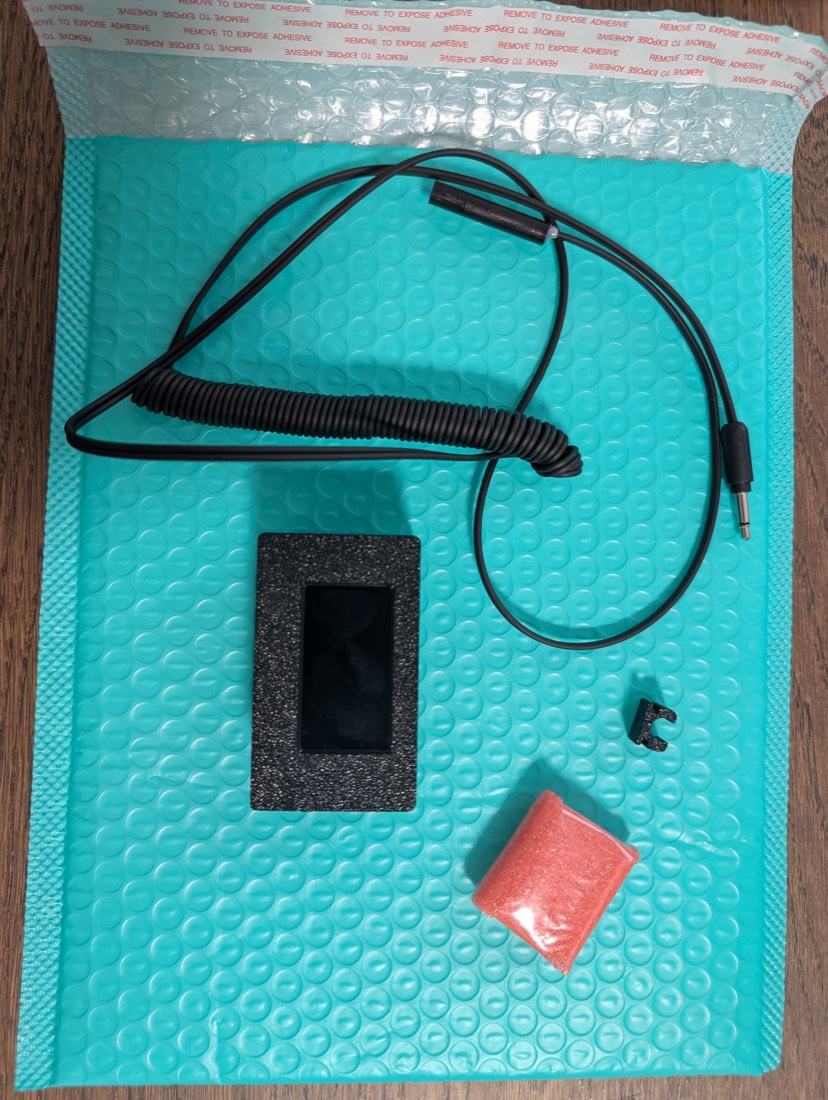
- Collidera receiver with LCD screen and Wi-Fi
- Wheel rotation sensor with cable and 3.5 mm audio jack
- Sensor holder for cage bars
- Neodymium magnet, wrapped in protective red bubble wrap
You will also need a USB C cable and power supply.
Install the Collidera app
Download the Collidera app from the App Store or Google Play.


Open the app and sign in with your email address. You will receive a one-time verification code by email — there is no password to create.
Create a profile for your hamster, including its name.
Connect your Collidera receiver
- Connect the receiver to power using USB C.
- Wait for the device to start. The LCD screen should turn on.
- In the app, open your pet profile. At the bottom you will see a Pair Sensor button — tap it.
- The app starts scanning for nearby sensors. Tap your sensor when it appears in the list, then tap Pair Sensor to confirm. The screen on the receiver should change.
- Back in the app, tap Configure Wi-Fi and enter your home network name (SSID) and password.
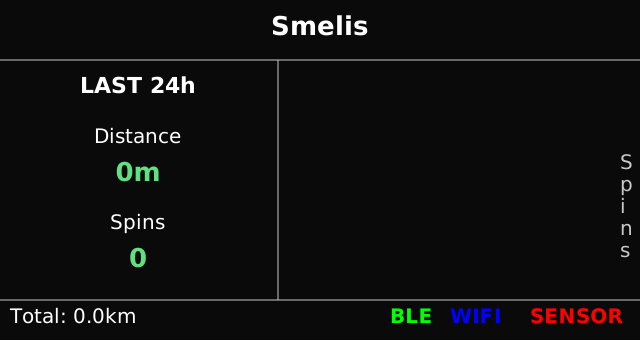
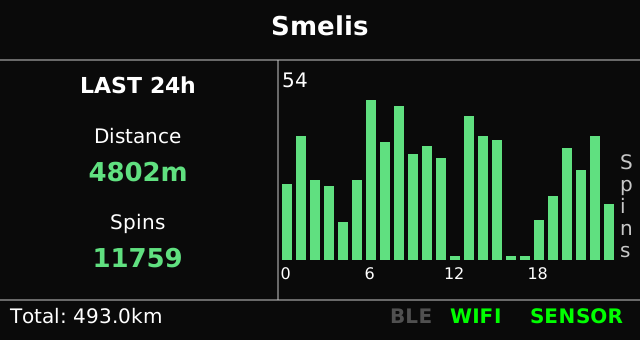
- Once the connection succeeds, WIFI appears in green on the receiver.
Install the wheel sensor
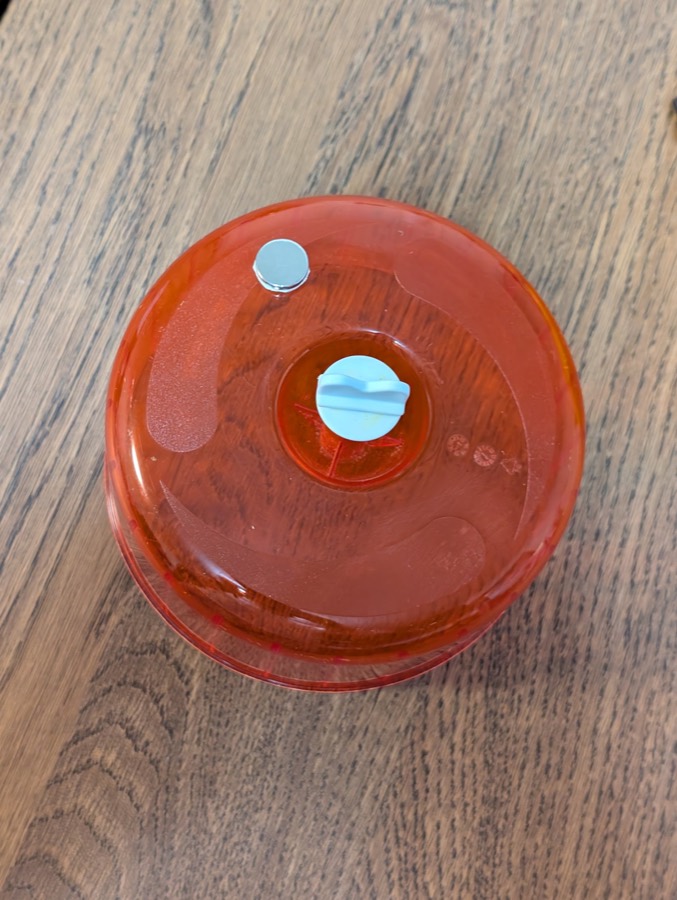
- Unwrap the neodymium magnet from its protective red bubble wrap.
- Attach the magnet securely to the outside of your hamster's exercise wheel, where your hamster cannot reach it.
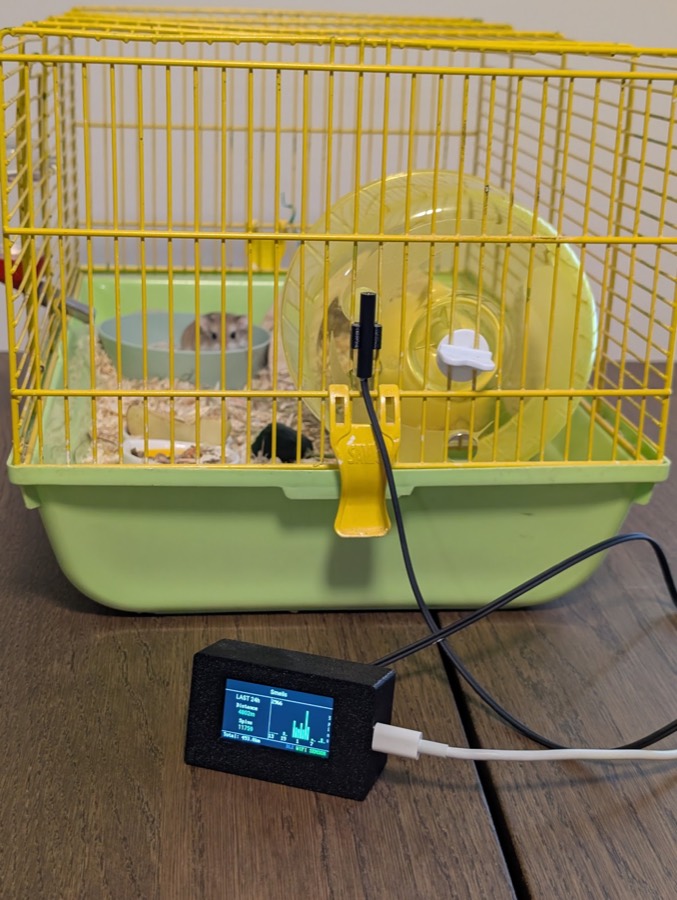
- Attach the sensor holder to the cage bars near the wheel.
- Insert the sensor into its holder.
- Position the sensor so the magnet passes close to it once per wheel rotation.
- Connect the sensor cable's audio jack to the Collidera receiver.
Test your setup
- Gently rotate the wheel by hand.
- Every full rotation should increase the spin counter on the receiver by one.
- If spins are not registering, adjust the distance between the magnet and the sensor and try again.
Start tracking
Your Collidera is ready. When your hamster uses the wheel, Collidera records the activity automatically.
Open the app to follow your hamster's activity and explore the recorded statistics.
Reading the receiver screen
Three bottom-row words tell you what the receiver is doing at a glance. Here is what each screen looks like, and what the colours mean.
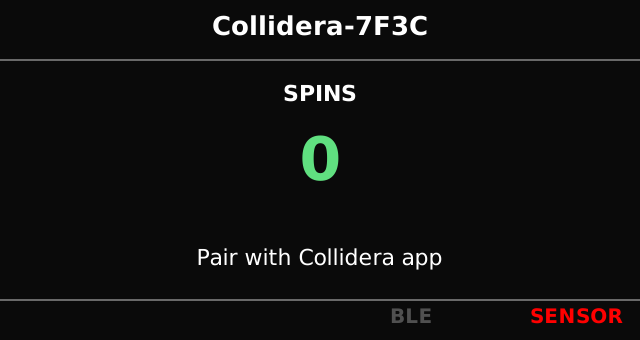
WIFI only appears once the receiver is paired — the unpaired screen has no slot for it.